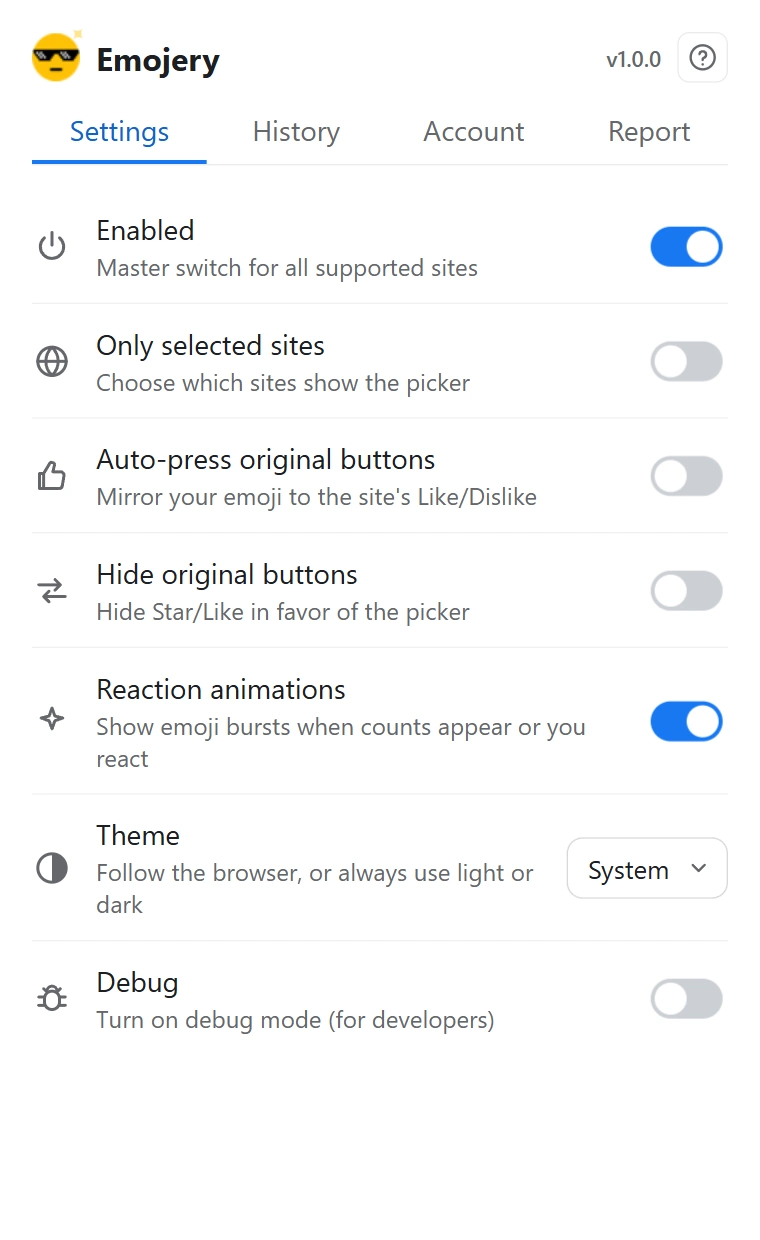
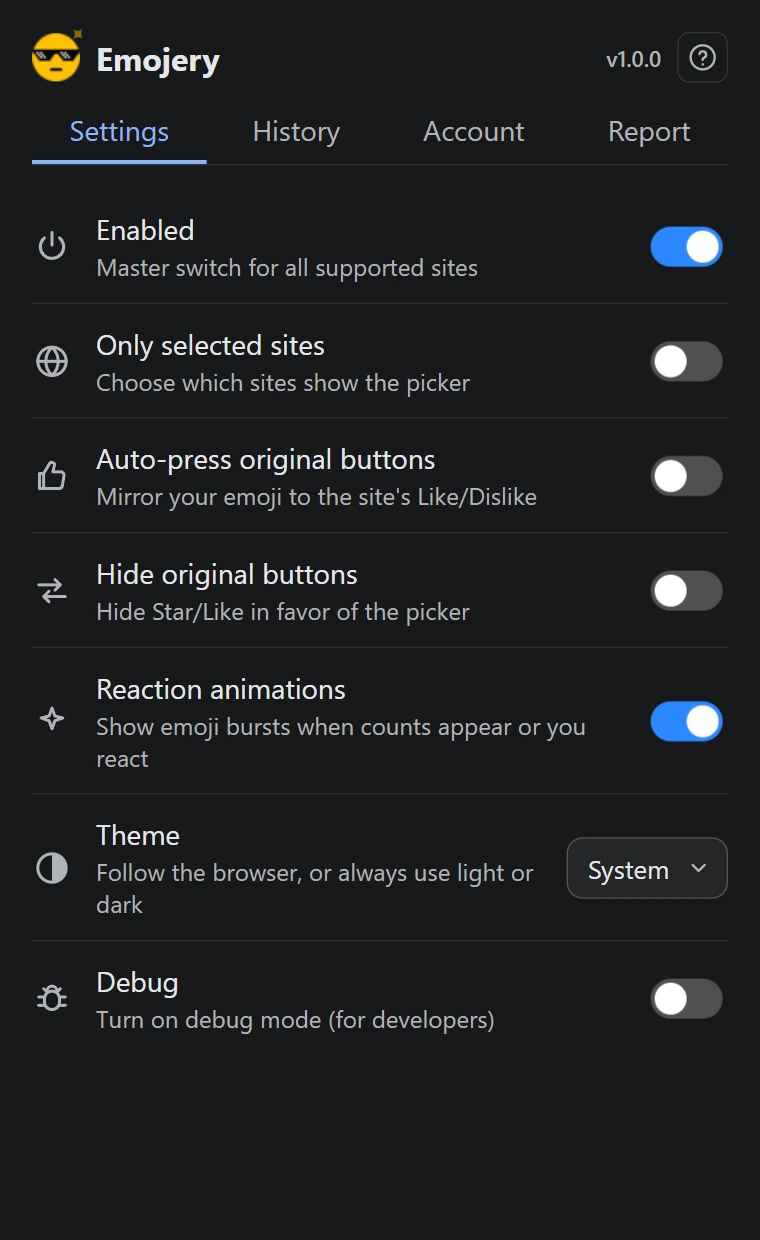
Emojery follows your browser's theme until you tell it otherwise. You can pin it to light or dark, and turn off the animation that plays on a reaction.
Choose a theme
Open the popup and go to the Settings tab.
Find Theme and pick Light, Dark, or System to follow the browser, which in turn usually follows the operating system.
Turn off the animations
In the same tab, switch off Reaction animations. The emoji bursts that play when counts appear or when you react stop; everything else is unchanged.
What the theme covers
Emojery's own surfaces: the picker, the popup, the sign-in screen. The page underneath keeps whatever theme the site gives it.
The button sitting in a page's action row is a special case. It copies that site's own button styling so it does not look pasted on, and your theme choice is what decides which way it corrects the text color when the site's colors would otherwise leave it unreadable.
Light
Dark
The same panel in both themes. Theme is the row that decides which one you get.