
Export and restore your history
Your history lives in the browser you made it in and nowhere else. Exporting it is the only copy that survives an uninstall, a wiped profile or a new laptop.
Export
- Open the popup and go to the History tab.
- Find Export history and click Export.
- Your browser saves a file named
emojery-history-plus today's date, ending in.json. Keep it wherever you keep backups.
Restore
Importing replaces what is there. It does not merge the file into your current list.
- In the History tab, find Import history and click Import.
- Pick an Emojery export file.
- Read the confirmation: it shows how many reactions you have saved now and how many are in the file.
- Click Replace. What was in the History tab is gone and the file's contents take its place.
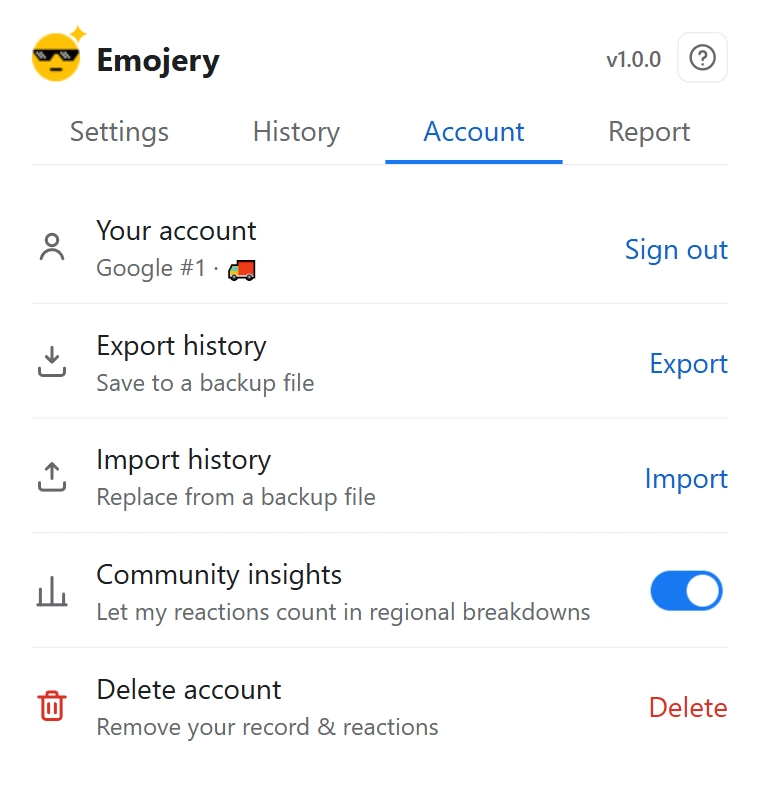
Import replaces, and does not ask twice
There is no undo and no merge. If both the file and the current browser hold reactions you care about, export the current list first - then you have both files and can decide later.
What is in the file
Plain JSON: a marker saying it is an Emojery export, the date it was written, the extension version, and your reactions. You can open it in any text editor and read it.
Only a file carrying that marker can be imported. A JSON file from somewhere else is refused rather than half-applied, which is what stops an unrelated download from wiping your list.
It carries history, not your account
The file holds the local list. Your reactions and the public counts live with your account on the server and follow you to any browser you sign in on.
Settings do not travel in the file either: which sites are enabled, the theme, the auto-press lists. Those are per-install today.