
Hide the original buttons
One switch takes the site's own control out of view and leaves the picker in its place. It is global, and it is reversible.
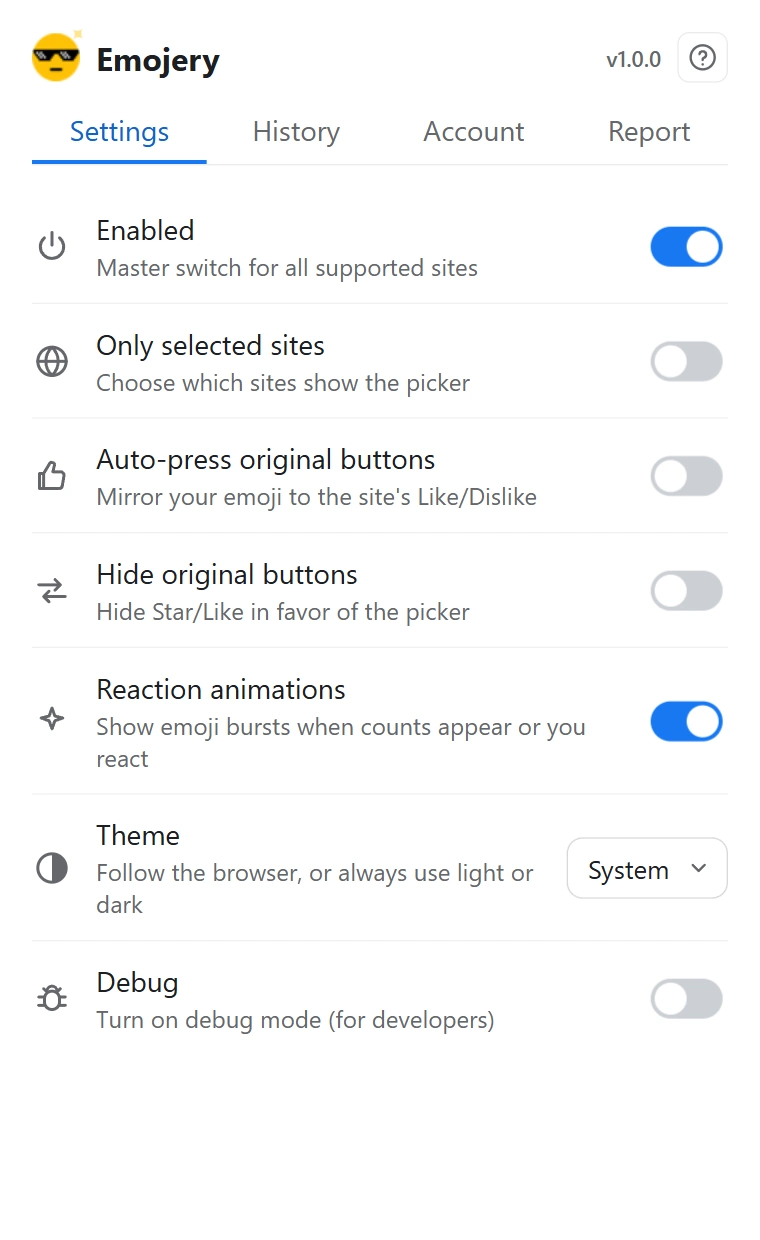
- Open the popup and go to the Settings tab.
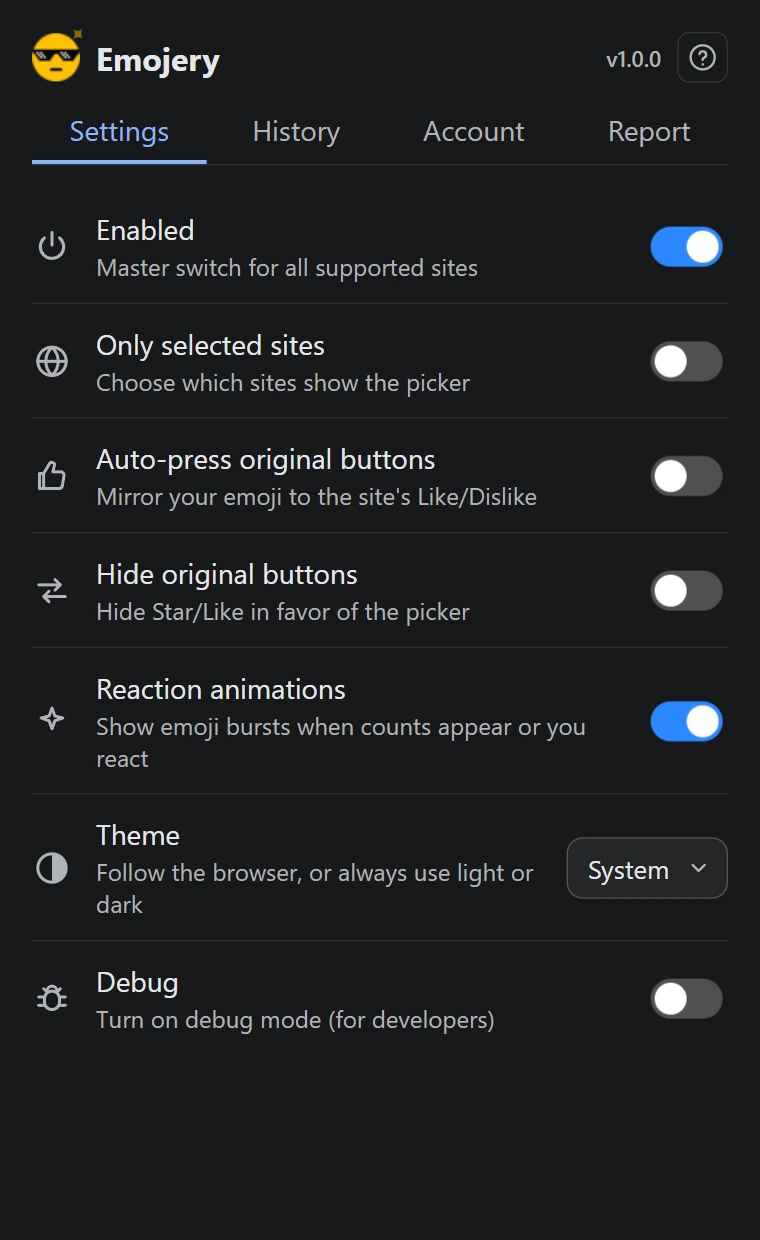
- Switch on Hide original buttons.
- Open or reload a supported page. The site's Like or Star is gone and the Emojery button stands where it was.
When the change takes effect
Switching it off brings the native buttons back in tabs you already have open, right away.
Switching it on applies to pages you open or reload from then on, rather than retroactively stripping controls out of tabs you are in the middle of using.
Hidden, not removed
The control stays on the page and stays functional. Nothing is sent to the site, nothing is blocked, and the site cannot tell the difference. Only your view changes.
That is also why Auto-press keeps working with this on: it presses a control that is still there.
It is all sites or none
This setting has no per-site version. To switch Emojery off somewhere entirely, use the per-site toggles instead.